AI Watermark Remover
The image was yours the moment it rendered. The corner stamp was added after — by the tool, not by you. Take it back: Auto-fix or crop, right in your browser, free, batch-friendly, no account.
Open the toolClean your images
Drag on the image to cover the watermark — your box applies to every loaded image. Works for marks in any position, not just corners.
Drag to add an area — add as many as you need, every box applies to all loaded images. Tap an existing box to remove it.
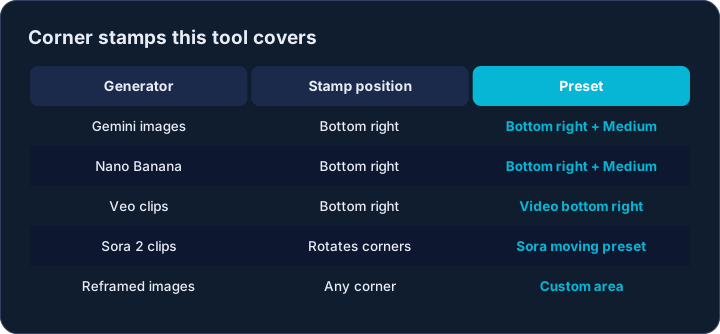
One tool for every AI corner stamp
AI image tools stamp their output in different corners: bottom-right, bottom-left, sometimes top. WatermarkRemover covers all four positions at three sizes, so one tool handles marks from any generator you use.
Two removal methods cover every case. Auto-fix makes the marked area disappear into its surroundings — invisible on skies, gradients, bokeh and studio backdrops, which is where corner stamps usually sit. Crop edge off trims the strip away entirely when the mark overlaps detail.
A batch of forty images takes seconds, and your originals never leave the machine.
What kind of result to expect
Auto-fix is at its best exactly where corner marks live: skies, walls, water, fabric and blur come out practically seamless. Zoom to 100% before posting — if you cannot see the repair, neither can anyone else.
For marks sitting on text, faces or fine patterns, use Crop instead: cutting 6-8% off the edge is invisible on most feeds and guarantees a clean result.
Is it safe to remove a watermark?
Only remove marks from images you own or created. AI platforms grant you rights to your own generations; do not strip marks from other people's work.
Why does Auto-fix look blurry on my image?
The blur matches the surrounding texture — on flat or soft backgrounds it disappears. On busy detail, switch to Crop mode.